
|
|
| Home · Freebies · Newsletter · Register · Resources · About Us |
Microsoft® Word’s automatically numbered and bulleted lists are fraught with problems. They’re hard to understand, they’re unpredictable, and, worst of all, they don’t use real characters, which means they can’t be imported into typesetting programs like QuarkXPress, making them useless for real-world publishing.
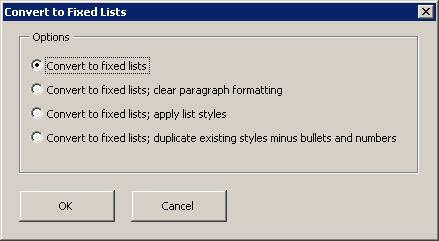
ListFixer converts automatic numbers and bullets into real numbers and bullets in the active document, all open documents, or all documents in a folder. In addition, it can be used instead of the Bullets and Numbering buttons on the Formatting toolbar, making it possible to select text and instantly apply or remove real numbers and bullets as you work.
|
If you like, ListFixer will apply special paragraph styles to your lists, allowing you to easily adjust indentation, line spacing, and tab alignment for list items simply by modifying the styles.
If you’ve applied automatic numbering and bullets through the use of paragraph styles, you can have ListFixer duplicate those styles, without the automatic numbering and bullets, and apply real numbers and bullets to the paragraphs instead—thus allowing you to maintain the formatting of those paragraphs.
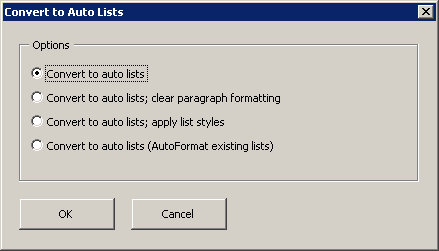
Finally, ListFixer can also unfix your lists, if you so desire. In other words, if you have lists with real numbers and bullets but want to convert them to automatically numbered and bulleted lists (styled or unstyled), ListFixer will do the job, for the active document, all open documents, or all documents in a folder.
|
ListFixer is purposely not smart when used with selected text. If you apply numbers to text under a previously numbered list, it will not number your selection as a continuation of the list above it, nor will it try to guess what the next number should be in a list after a “skipped” paragraph. Why? So that you, rather than Microsoft® Word, can be in control. If you need to continue numbering after a previously numbered paragraph, just select the entire list and have ListFixer apply your numbers. And if you need to type a few numbers in by hand, you can, because all of the numbers created by ListFixer are real characters rather than invisible, ephemeral, uncontrollable codes inserted by Microsoft® Word.
When fixing all of the automatic lists in a document, however, ListFixer is smart. If a list starts with 7, for example, ListFixer will fix that number as 7 and not as 1. In addition, ListFixer is perfectly capable of fixing multilevel, mixed-format lists created as automatic lists in Microsoft® Word. That means if you need to create a complex, multilevel list, you can do so with Word’s automatic list features and then convert the numbers and letters at the beginning of list items to fixed numbers and letters using ListFixer.
ListFixer has several advantages over public-domain macros that convert automatic lists to fixed lists:
Download ListFixer 1.0 for Microsoft® Word 97 or higher for PC or Macintosh.
After downloading the program, unzip it using Windows®, WinZip (PC), or Stuffit Expander (Macintosh or PC). You'll then see the following files:
Installing ListFixer: Instructions for installing the program.
ListFixer.dot: The ListFixer program template.
Using ListFixer.doc: The program documentation in the form of a Word document. Read it!
Is your evaluation period over? Register ListFixer and make it run forever!
1 user: $29.95.| Home · Freebies · Newsletter · Register · Resources · About Us |
|
Copyright
© 2006 by the
Editorium. All rights reserved. Contact us for technical support and
other matters by
.
Microsoft
and the Office logo are trademarks or
registered trademarks of Microsoft Corporation in the United States
and/or other countries. |